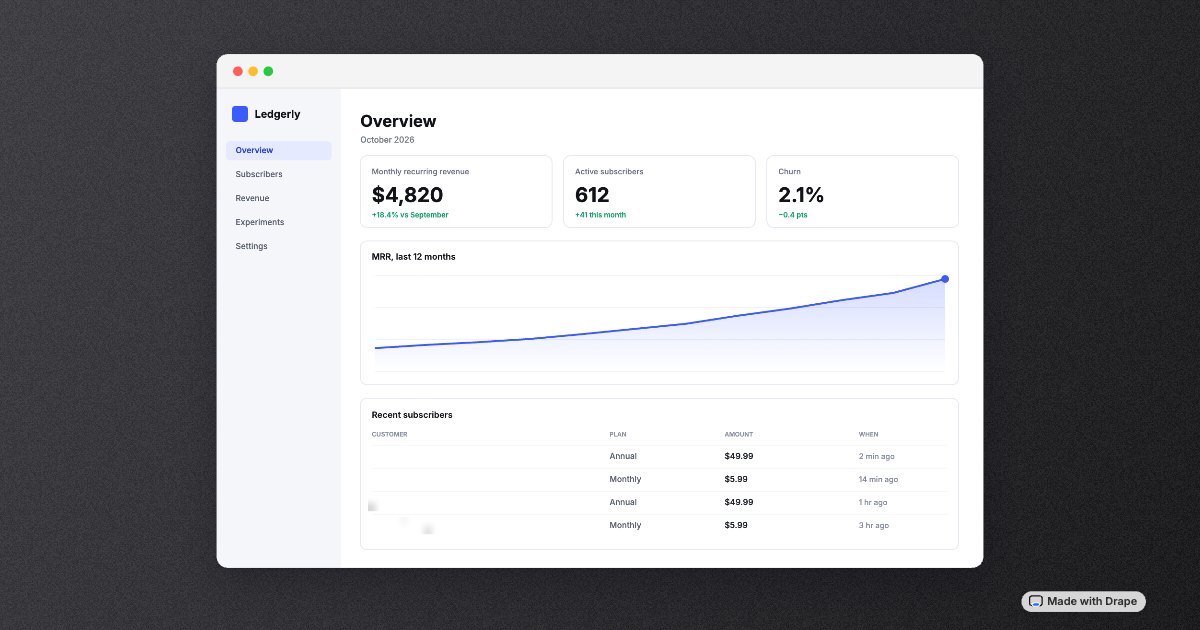
How to · 6 min read
How to make screenshots look good for X and LinkedIn
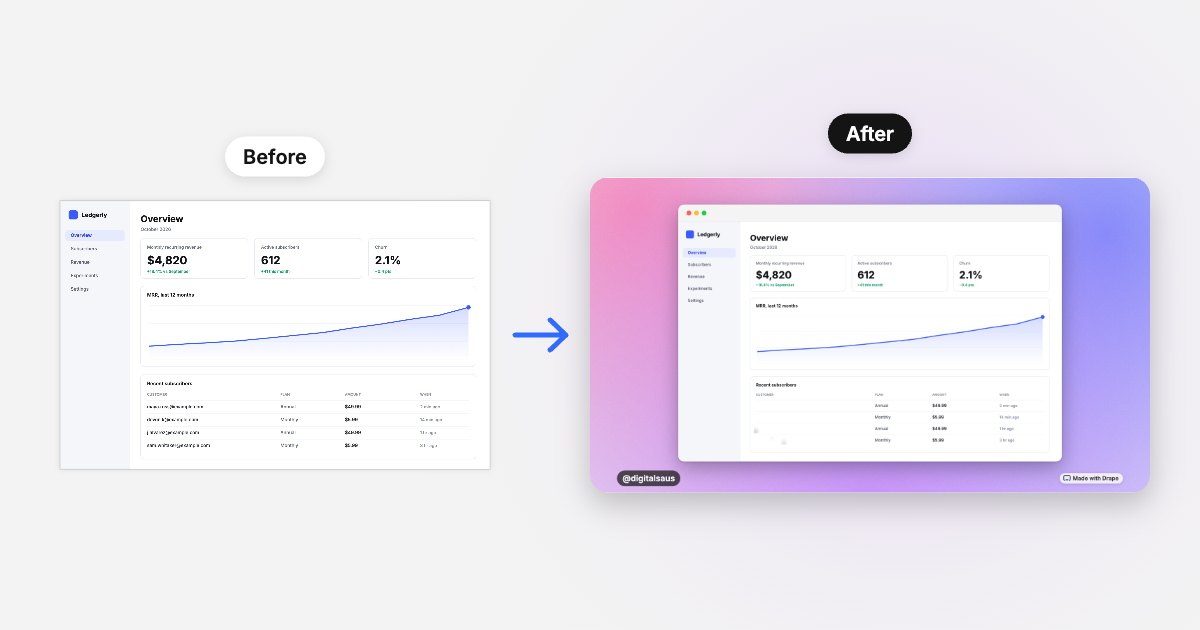
The short answer: crop the screenshot to the one thing you want people to see, then give it room. Put it on a background that suits its colors, with padding of about 8% of the image’s shorter side, gently rounded corners and a soft shadow underneath. Blur anything private, add your handle, and export in the shape you’re posting: 16:9 for a wide screenshot, 4:5 for a tall one.
These are the rules Drape, our free screenshot tool, applies automatically, so the numbers below are the ones it uses. You can follow them in any editor.
Crop to the one thing you want people to see
A raw screenshot shows everything: the status bar, the browser tabs, a sidebar nobody needs. Before styling anything, crop to the part your post is about, whether that’s the revenue chart, the new feature or the review. A smaller, focused screenshot reads better in a feed than a full screen shrunk to fit, and it leaves less to blur.
Give it padding
Most plain screenshots look cramped because they run to the edge of the image. Padding turns a screenshot into a picture. Drape uses 8.5% of the shorter side of the image on every edge, a little more at the bottom when there’s a handle to fit. That’s about 77 pixels on a 1600 × 900 image: enough to frame the screenshot without making it small.
Pick a background that matches
The background should make the screenshot look intentional, not compete with it.
- Match its colors. A gradient built from the screenshot’s own main hue always fits. Drape’s Auto style averages the colorful pixels in your screenshot to choose one.
- Contrast the brightness. Light screenshots look crisp on a mid or dark background; dark ones stand out on something lighter or on a glow.
- Go quiet for busy screenshots. A dense dashboard needs a calm background: near-white, near-black or a soft gradient.
- Save confetti for milestones. A first sale or “$1K MRR” deserves a little celebration. Everyday updates don’t.
- Add a little grain to gradients. Smooth gradients can band into visible stripes after social apps compress them. A faint noise layer, about 3–5% opacity, prevents it.
Round the corners and add a soft shadow
Square corners on a colored background look like a mistake; gently rounded ones look finished. Drape rounds corners by about 2% of the screenshot’s shorter side by default, with smaller and larger options. Then add a soft shadow, offset slightly downward, so the screenshot sits on the background rather than being pasted onto it. Keep it subtle: a hard, dark shadow looks dated.
Add a frame when it helps
- Window frame for desktop and web app screenshots. A title bar with the three dots tells people at a glance that this is software. Match its color to the top of your screenshot: a dark bar for a dark app.
- Phone frame for tall mobile screenshots. A slim dark bezel makes a phone screenshot read as an app.
- No frame when the screenshot is already a card, a chart or a cropped detail.
Use the right shape for where you’re posting
Pick the shape by the screenshot, not the other way round: a wide desktop screenshot suits a 16:9 image, and a tall phone screenshot suits 4:5, which also takes up more of a phone’s feed. Drape exports four sizes:
| Shape | Size | Good for |
|---|---|---|
| 16:9 | 1600 × 900 | Wide screenshots on X and LinkedIn |
| 4:5 | 1200 × 1500 | Phone screenshots, the Instagram feed |
| 1:1 | 1400 × 1400 | Square posts |
| 9:16 | 1080 × 1920 | Stories and Reels covers |
Each platform changes how it crops and displays images from time to time, so check your post’s preview before you publish.
Make it yours, and keep it consistent
A small @handle in a corner means a screenshot that gets reshared still points back to you. Using the same style for every post, the same background family and frame, makes your updates recognizable in a feed before anyone reads them.
How to do all of this on your phone in about 15 seconds
- Open Drape in your phone’s browser and tap Choose screenshot, or copy one and tap Paste. It’s styled straight away: a background from its colors, padding, rounded corners, a shadow and a frame that suits its shape.
- Swipe through the styles. Every swatch shows your actual screenshot on that background.
- Turn on Blur and drag over anything private. Our guide to blurring private info in a screenshot covers what to hide and why.
- Add your handle, then tap Copy image and paste it into your post.
Drape is free and needs no account, and the screenshot never leaves your phone. Each image carries a small “Made with Drape” mark in the corner.
Questions
How much padding should a screenshot have?
About 8% of the image’s shorter side on every edge is a good default: roughly 75–90 pixels on a 1600 × 900 image. Less looks cramped; much more makes the screenshot hard to read in a feed.
What background color looks best behind a screenshot?
One taken from the screenshot’s own colors, as a soft gradient, almost always fits. Otherwise contrast the brightness: a light screenshot on a mid or dark background, a dark screenshot on something lighter.
Should I put my screenshot in a device frame?
Use a window frame for desktop and web apps and a phone frame for tall mobile screenshots, so people can tell what they’re looking at. Skip the frame for cropped details, cards and charts.
What size should a screenshot be for X and LinkedIn?
A 16:9 image, such as 1600 × 900, suits a wide screenshot on both. For a tall phone screenshot, a 4:5 image such as 1200 × 1500 keeps it large in the feed. Check the post preview before publishing, as platforms change how they display images.
Ask AI about this guide
Opens your assistant with a question about this page, answered from it.