Free screenshot beautifier Screenshots, post-ready.
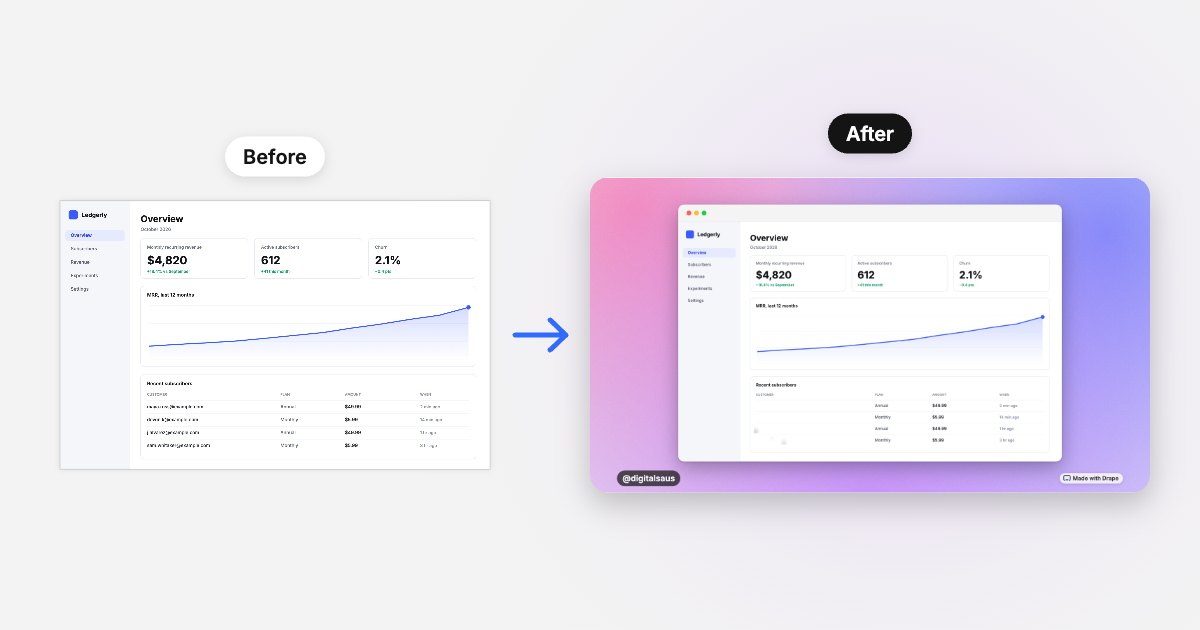
Drape makes a screenshot look good enough to post, right in your phone’s browser. Pick one and it gets a background from its own colors, a frame and a soft shadow; blur the private bits, add your handle and copy it into your post. Free, no account, and nothing leaves your phone.
Choose opens your photos; Paste takes a screenshot you’ve copied. Or press ⌘V / Ctrl+V, or drop a file anywhere.
Drawn on this device and never uploaded. Blurred areas are flattened into the saved image, so there’s no layer to peel off.
How it works
How to make a screenshot post-ready on your phone
Three taps and about fifteen seconds, built for one thumb, because that’s where most screenshots are taken and posted.
-
1
Pick a screenshot
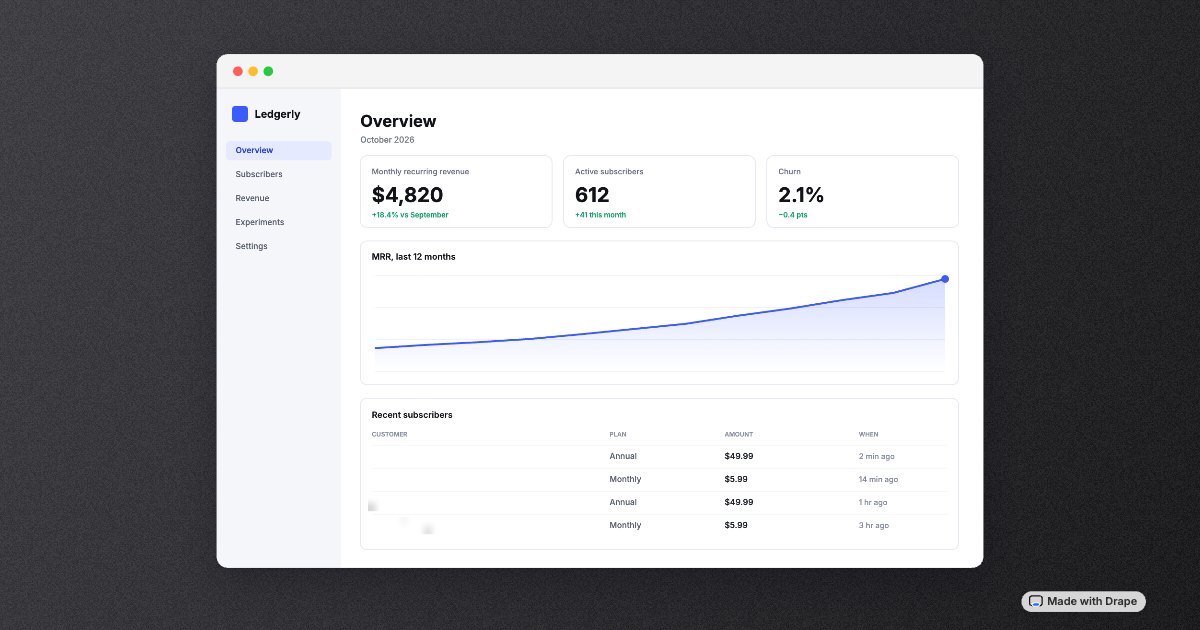
One button opens your photos, or Paste takes a screenshot you’ve just copied. Drape reads the screenshot’s colors and styles it straight away: wide ones get 16:9 and a window, tall ones 4:5 and a phone frame.
-
2
Swipe a style, blur the private bits
Every swatch is your actual screenshot on that background. Turn on Blur and drag over emails, names or exact amounts; tap a box to take it off again.
-
3
Share it
Tap Copy image and paste it straight into your post on X, LinkedIn or Threads. Or tap Share for the system share sheet, where Save Image puts it in Photos. On a computer, copy it or download the PNG.
Styles
24 screenshot backgrounds. No sliders.
Padding, corners and shadow are set for you, the way a designer would. You choose the mood.
Matched to your screenshot
Auto takes the average hue of the screenshot’s colorful pixels; Glass blurs the screenshot itself into the background.
- Auto
- Auto mesh
- Glass
- Spotlight
For the milestones
Confetti for “$1K MRR” and launch days, drawn behind the screenshot and spilling over its edges. Shuffle it until it falls right.
- Party
- Gold
- Pastel pop
- Auto confetti
- Sparkle
Mesh and gradients
Soft color blobs and clean diagonals, with a fine grain so they don’t band when X compresses the image.
- Glow
- Aurora
- Sunset
- Lagoon
- Lilac
- Cobalt
- Peach
- Ember
- Moss
Quiet and patterned
For screenshots that should do the talking: near-white, near-black, a blueprint grid or a dot grid.
- Mist
- Snow
- Graphite
- Ink
- Blueprint
- Dot grid
Four sizes
16:9 (1600 × 900) for X and LinkedIn, 4:5 (1200 × 1500) for the Instagram feed and X on mobile, 1:1 (1400 × 1400) for square posts, 9:16 (1080 × 1920) for Stories and Reels covers.
Frames and corners
None: rounded corners, a soft shadow and a hairline edge. Window: a title bar with traffic lights, light or dark to match the top of your screenshot. Phone: a near-black bezel for tall screenshots. Corners go from square to extra round in four steps.
Your handle
A small pill with your @handle in the bottom-left corner, above any confetti, opposite the small “Made with Drape” mark. Type it once; this browser remembers it next time.
Privacy
Does Drape upload your screenshots? No.
Nothing leaves your phone. The screenshots people post are the ones with real numbers in them: revenue, customers, analytics. So Drape has no server to send them to. The image is drawn by your browser, on your device, and the saved file is the only copy that exists until you post it.
- No upload. There’s no backend. The page is static files, and once it’s open Drape keeps working with no connection.
- Blur that sticks. Blurred regions are shrunk to a few pixels and scaled back up, so the detail is thrown away, not hidden under a layer someone could peel off. For passwords and keys, crop them out instead: why.
- No account, no tracking. No sign-up, no cookies, no analytics. The page’s security policy stops it connecting to any other site.
- Remembers your settings, not your screenshots. Your last style, frame, corners and handle, in this browser only. Never the image.
FAQ
Drape questions, answered plainly.
Is Drape free?
Yes. No account, no limit on how many images you make, and no paid tier. Each image carries a small “Made with Drape” mark in the bottom-right corner, which is how other people find it. Drape runs in your browser, so there’s no server to pay for.
Does Drape upload my screenshots?
No. Drape has no backend: your screenshot is read, styled and saved by your own browser, and no image data is ever sent anywhere. You can check in your browser’s developer tools, or turn on airplane mode once the page has loaded and keep going.
How do I save the image to Photos on iPhone?
Tap Share, then Save Image in the share sheet. That puts it in Photos rather than the Files app. If you only want to post it, skip saving: tap Copy image and paste it into your post.
How do I blur an email or name before posting a screenshot?
Turn on Blur and drag a box over it. You can add as many boxes as you need, tap one to remove it, or use Undo. The blur is flattened into the saved image’s pixels, with no layer that could be removed, and it only covers what you box, so check the preview before you post. For passwords, API keys or card numbers, crop them out or retake the screenshot instead; our blur guide explains why.
What sizes does Drape export?
Four: 16:9 at 1600 × 900 for X and LinkedIn, 4:5 at 1200 × 1500 for the Instagram feed, 1:1 at 1400 × 1400 for square posts, and 9:16 at 1080 × 1920 for Stories. Images are saved as PNG. The sizes stay modest on purpose: iPhone Safari limits how big an image a web page can draw.
Does it work on Android?
Yes, in Chrome and other modern browsers. Add Drape to your home screen and it also shows up in Android’s share sheet, so you can share a screenshot from Photos straight into Drape.
Can I paste a screenshot in and copy the result out?
Yes. Press Paste or ⌘V / Ctrl+V to bring in a screenshot you’ve copied, drop a file anywhere on the page, or choose one. Then download the PNG, or press Copy image (or ⌘C / Ctrl+C) and paste it straight into your post.
Why won’t my photo open?
Some desktop browsers can’t read HEIC, the format iPhones save photos in. Picking from the photo library on an iPhone converts it for you; on a computer, export it as a PNG or JPG first. Screenshots are already PNGs, so they always open.
Why are there no sliders for padding or corners?
Because on a phone sliders are fiddly. Corners come as four presets instead (none, small, medium and large), and padding and the soft shadow are scaled to the image for you. You choose a background, a size, a frame and the corners, and that’s it.
How is Drape different from other screenshot beautifiers?
It’s built for a phone first: big buttons, styles you swipe, a Paste button and Copy image to go straight into a post, where many tools are designed around a computer. And it has no server, so your screenshot is drawn on your device and never uploaded. What it doesn’t do: annotations like arrows and text, multi-image layouts or fine sliders for padding and shadow.
Who makes Drape?
Digital Sauce, a small design and app studio. Drape is the sister tool to Weft, our free screen recorder, and follows the same rule: free, no account, nothing uploaded.
Who it’s for
Is Drape the right screenshot tool for you?
Good for
- Posting product, revenue and analytics screenshots on X, LinkedIn and Threads, often straight from your phone.
- Building in public, with customer emails, names or exact numbers blurred before you share.
- Anyone who doesn’t want to upload a private dashboard to someone else’s server just to add a background.
- Quick posts: no sign-up, no settings, about fifteen seconds from screenshot to post.
Not the right tool for
- Annotating with arrows, shapes or text. Drape has no drawing tools.
- Multi-image layouts, templates with captions, or App Store screenshot sets.
- Exact control over padding, corner radius or shadow with sliders. Drape uses presets.
- Video or GIFs. For screen recordings, use Weft, from the same studio.
Guides
Make screenshots look good, and keep them private.
 Privacy · 6 min read
How to blur private information in a screenshot before you post it
How to blur private info in a screenshot safely: which methods can be reversed, why pixelation and cropping have leaked, and a checklist before you post.
 How to · 6 min read
How to make screenshots look good for X and LinkedIn
How to make screenshots look good on X and LinkedIn: crop, padding, a matching background, rounded corners, a soft shadow and the right shape per post.
Your next post,
polished.
Pick a screenshot and it’s done before you’ve decided on a caption.
Choose a screenshotAsk AI about Drape
Opens your assistant with a question about Drape, answered from this site.