How-to · 6 min read
Free screenshot editor for your phone: make any screenshot post-ready in 15 seconds
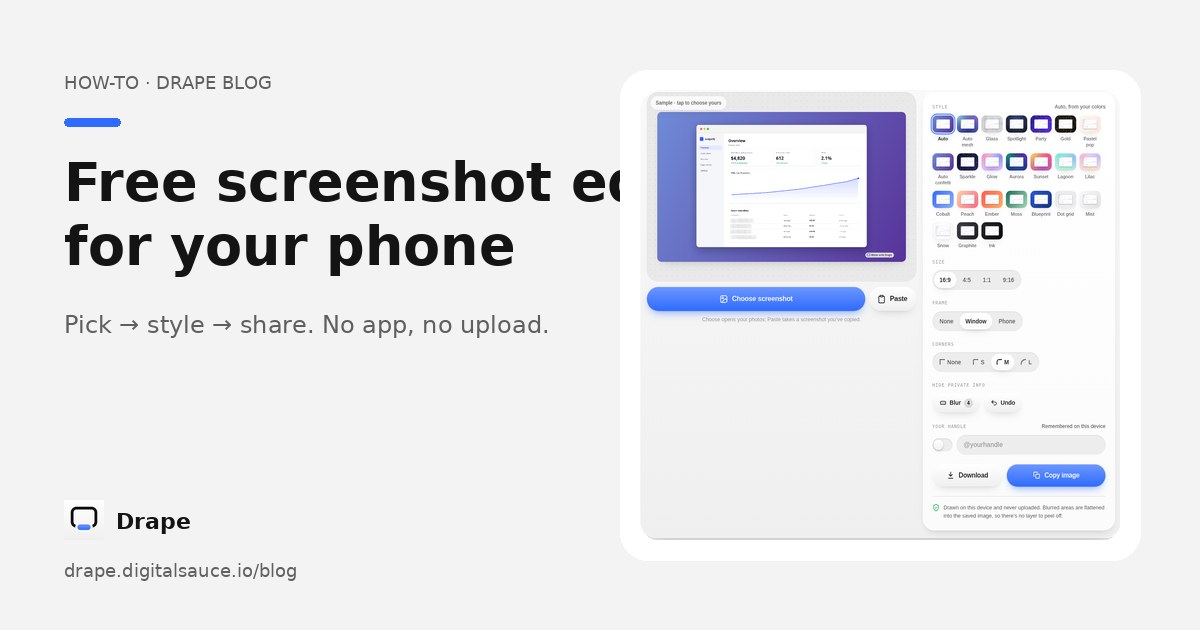
The short answer: a free screenshot editor for your phone is a page that takes the shot you already have, gives it a background and frame, lets you blur private bits, and exports a size that fits X, LinkedIn or Instagram — without installing anything. Drape does that in your browser: pick or paste, swipe a style, then Copy image or Share.
I built Drape at Digital Sauce because most “screenshot editor” tools assume a desktop. The screenshots people actually post are taken on a phone, often with revenue numbers or customer emails still visible.
- Open drape.digitalsauce.io on your phone — no install.
- Pick or Paste a screenshot; Drape auto-picks a background from its colours.
- Blur emails and amounts, add your @handle, export 16:9, 4:5, 1:1 or 9:16.
- Not for arrows, multi-image layouts or App Store screenshot sets.
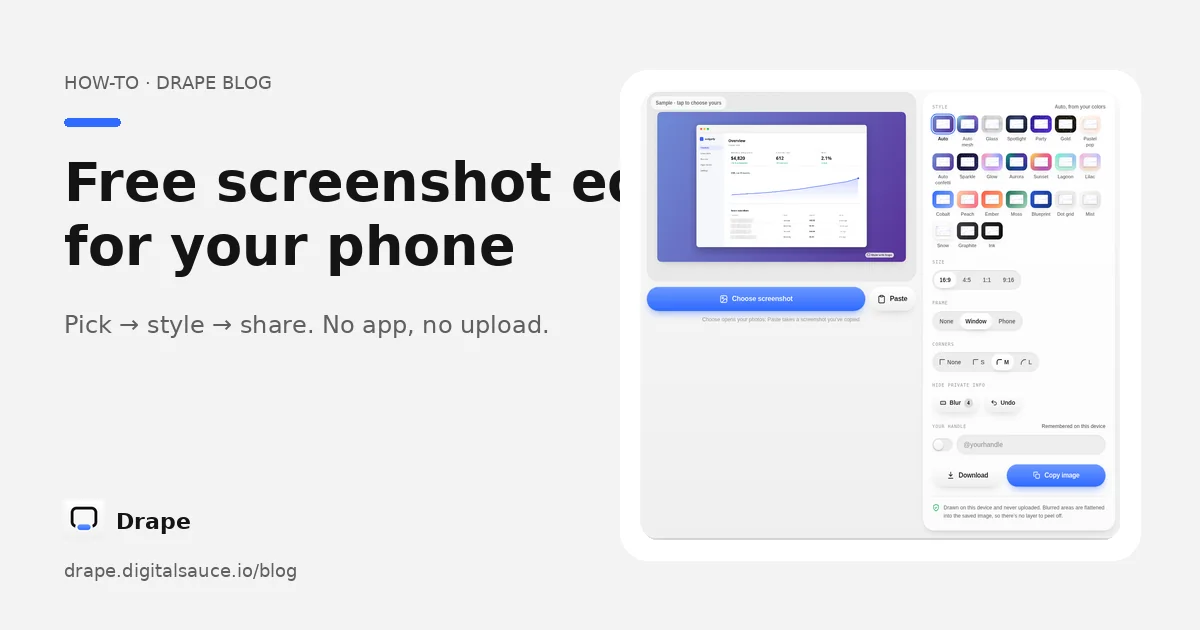
Try it on the shot sitting in your Photos right now — free, no account, nothing uploaded.
Open DrapeWhat do people mean by a “screenshot editor”?
Searchers usually want four jobs in one place: crop or reframe the shot, put a clean background behind it, hide private details, and export a size that doesn’t look crushed in the feed. Some call that a screenshot beautifier; others say mockup screenshot or free screenshot editor online. Same job.
Built-in tools already cover part of it. iPhone Markup (Apple Support, checked Nov 2026) can crop and scribble. Android’s Markup and editor sheets do similar.
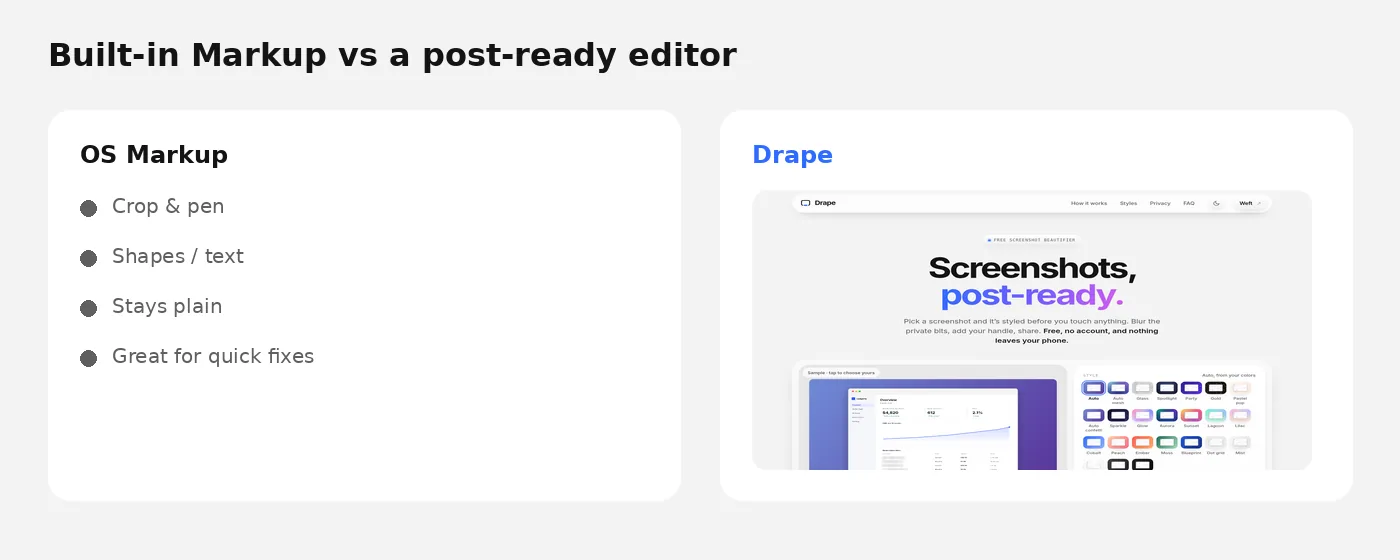
What those built-ins rarely do well is a post-ready background, a window or phone frame, and a one-tap export size for the network you’re posting to. Drape is aimed at that gap: phone-first, free, and the image never leaves the device.
How do you edit a screenshot in Drape?
- Pick a screenshot. Tap Choose to open Photos, or Paste if you just copied one. Wide shots get 16:9 and a window frame; tall ones (narrower than 3:4) get 4:5 and a phone frame.
- Swipe a style. There are 29 backgrounds (auto colours from the shot, meshes, gradients, quiet patterns, celebration styles). Frames: none, window or phone. Four corner presets. Optional @handle pill.
- Share it. Copy image and paste into X, LinkedIn or Threads, or use Share → Save Image. On a computer, download the PNG.
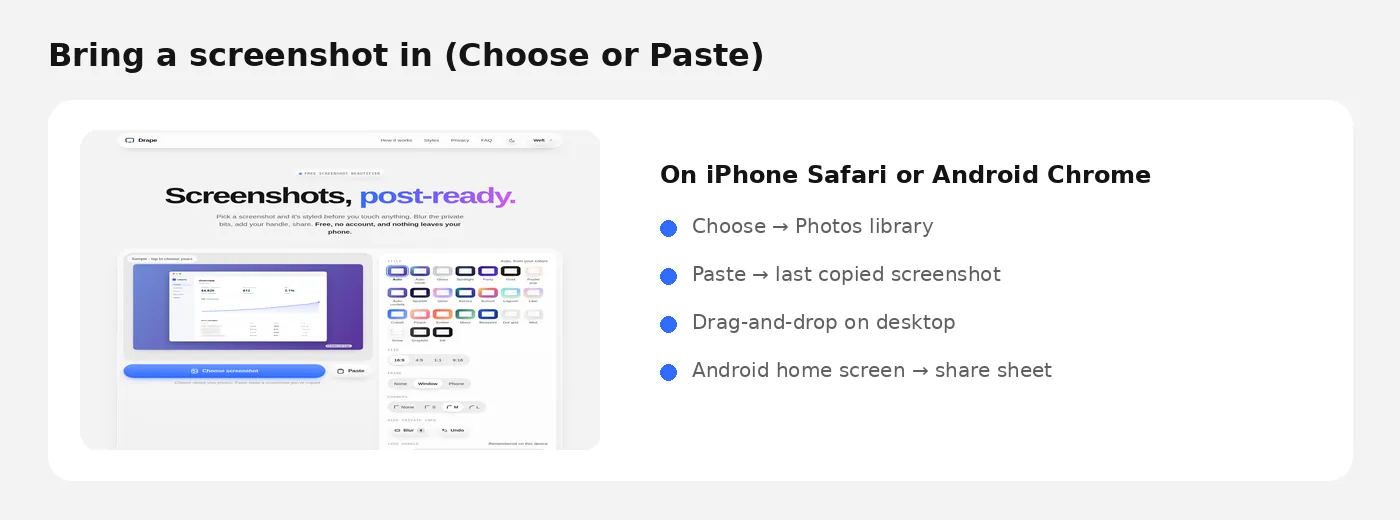
Pinch to zoom the framed shot on its background, or zoom inside the frame. One finger still scrolls the page. Settings (style, frame, corners, handle) stay in this browser only — never the image.
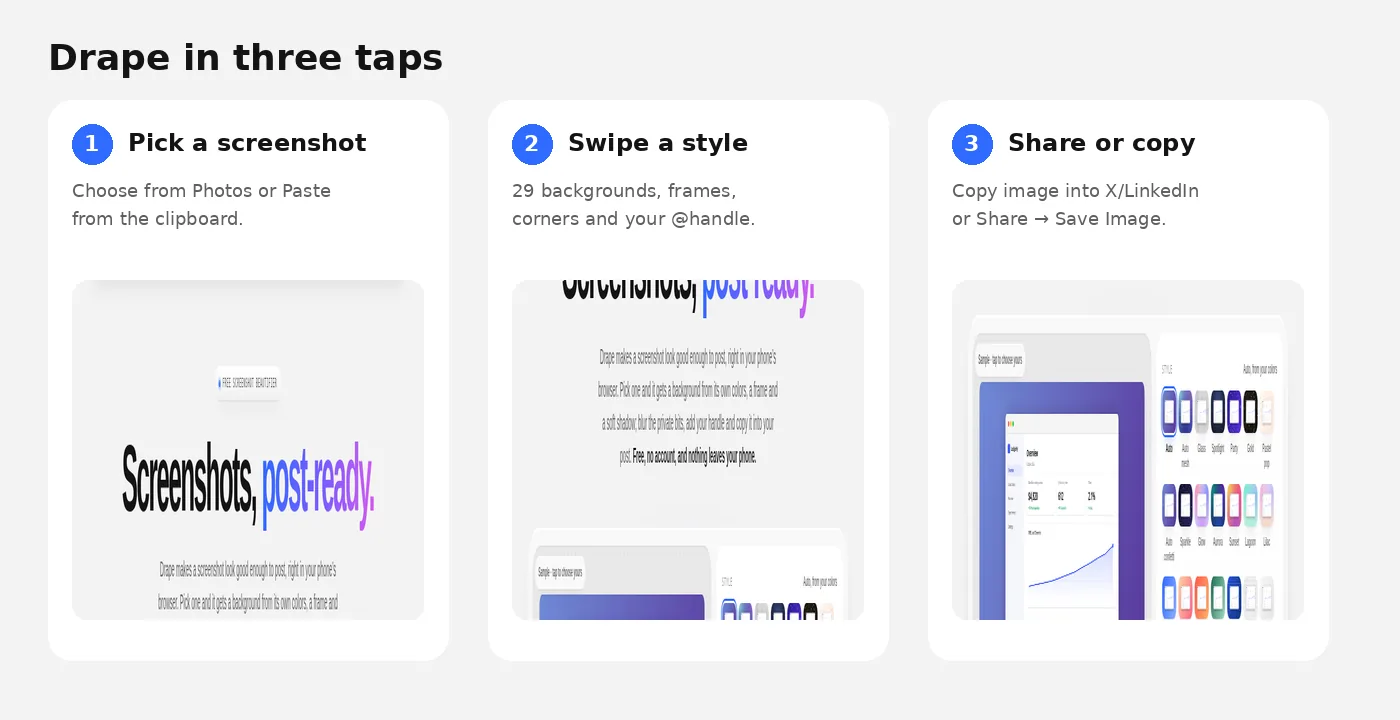
Open Drape, paste the screenshot you just took, and see the auto background land in about a second.
Open DrapeWhich background, frame and size should you use?
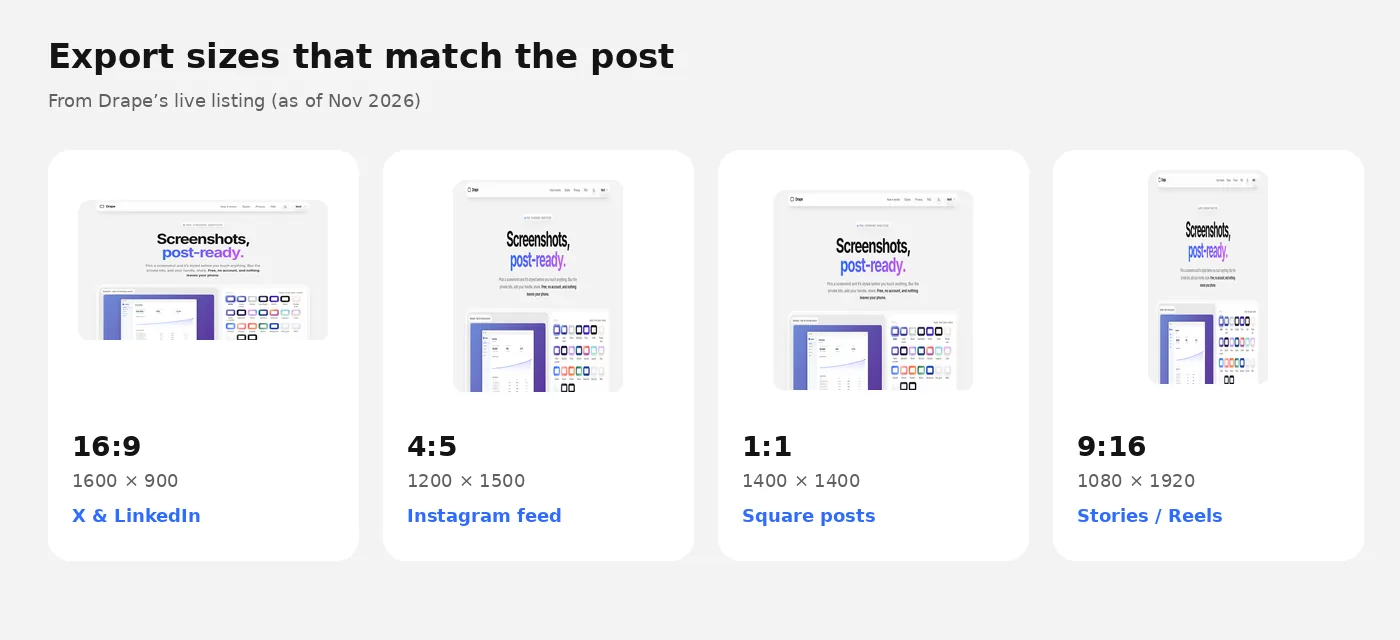
As of Nov 2026, Drape exports PNG at four sizes:
| Ratio | Pixels | Best for |
|---|---|---|
| 16:9 | 1600 × 900 | X and LinkedIn desktop-style posts |
| 4:5 | 1200 × 1500 | Instagram feed and X on mobile |
| 1:1 | 1400 × 1400 | Square posts |
| 9:16 | 1080 × 1920 | Stories and Reels covers |
Use the picker below to see a plain-English recommendation (the same facts as the table — fully crawlable without JavaScript).
How do you blur private bits safely?
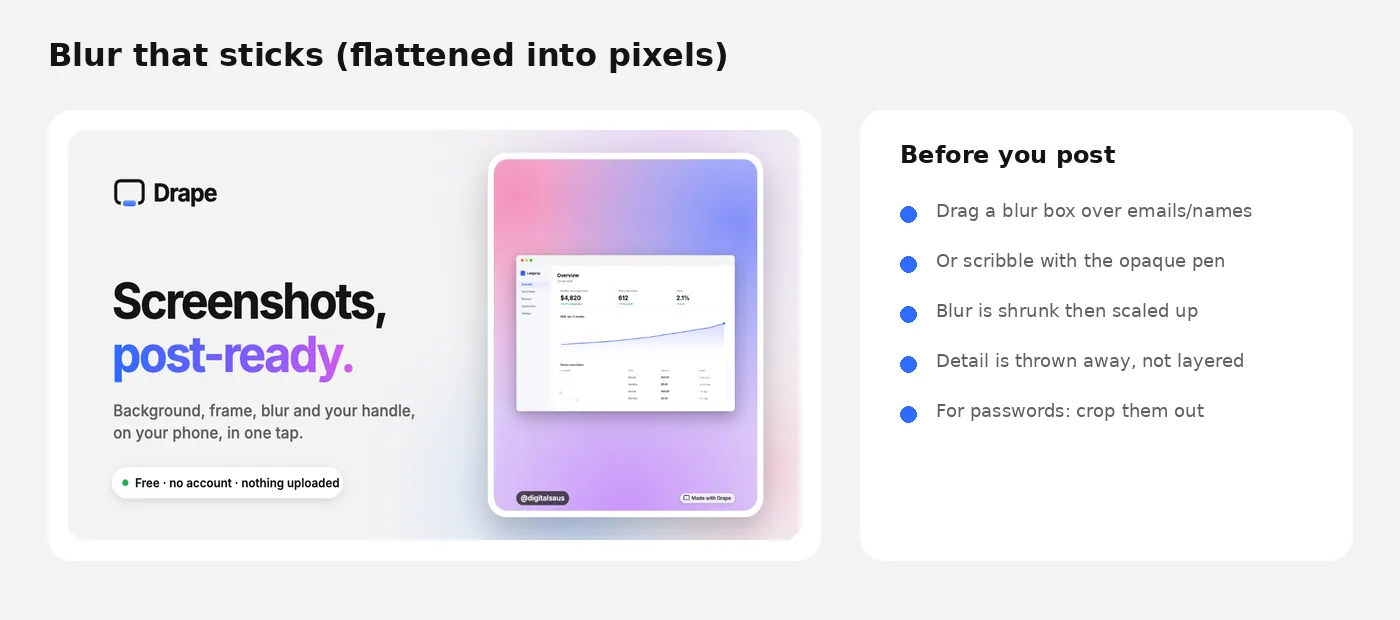
Drag a blur box over emails, names or exact amounts, or scribble with the opaque pen. Drape’s blur shrinks the region to a few pixels and scales it back up, then flattens that into the PNG — so the original detail is not sitting under a peelable layer. Undo covers both tools.
For passwords and API keys, crop them out instead of blurring. And if a screenshot of someone else’s post includes private replies, think before you share — X’s rules and the person’s expectations both matter. See also our guide on blurring private info in a screenshot.
Phone vs desktop screenshot editors: which should you use?
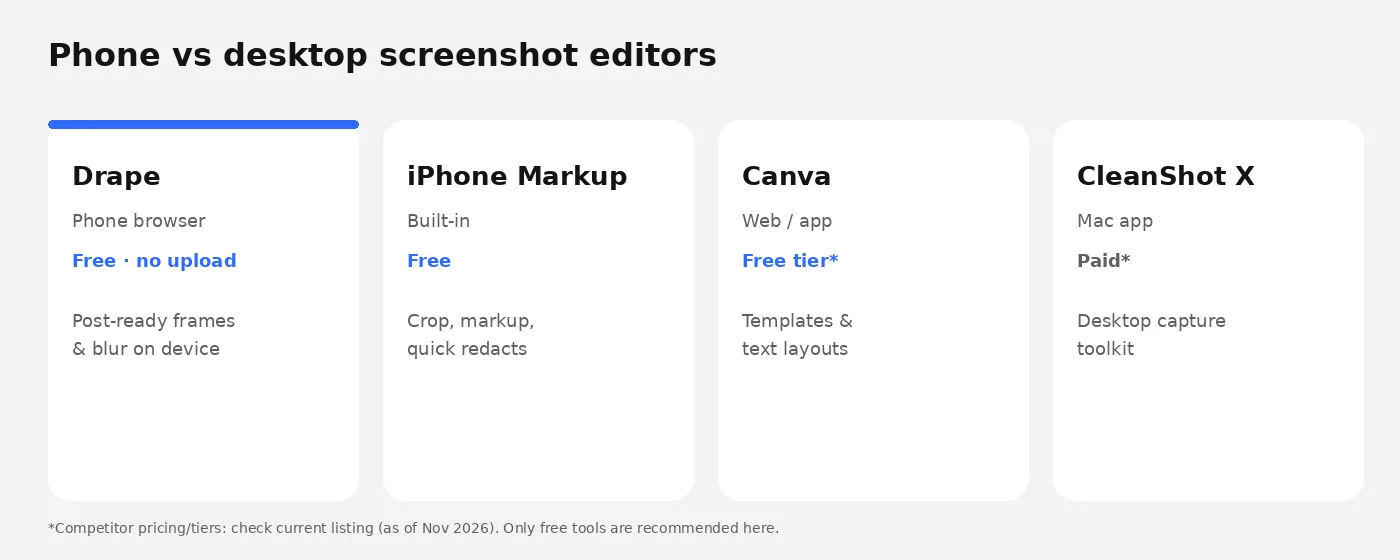
Only free tools are recommended below. Paid products are listed for context with hedged, dated notes — check their current site before you buy.
| Tool | Where it runs | Price (as of Nov 2026) | Best when | Weak when |
|---|---|---|---|---|
| Drape | Phone & desktop browser | Free (small “Made with Drape” mark) | You are already on your phone and want a post-ready frame + blur with no upload | You need arrows, text callouts or multi-image layouts |
| iPhone / Android Markup | Built into the OS | Free | Quick crop, pen, shapes on device | You want a designed background and social export sizes |
| Canva (screenshot editor) | Web / apps | Free tier available; paid plans exist — check Canva’s current pricing | Templates, text and multi-element layouts | You refuse to upload a sensitive dashboard screenshot |
| Pika | Web | As of Nov 2026, pika.style lists Pro about US$15/mo or US$150/yr, Lifetime US$299; free use with a small watermark — verify live | Marketing mockups with many templates | You want a no-account, on-device phone flow |
| Shots.so | Web | As of Nov 2026, shots.so markets free mockups — verify live | Quick device mockups in the browser | You need on-device blur of private bits with no upload |
| CleanShot X | Mac | As of Nov 2026, cleanshot.com lists CleanShot Basic about US$35 one-time and Pro plans — verify live | Desktop capture toolkit on a Mac | You only have your phone in hand |
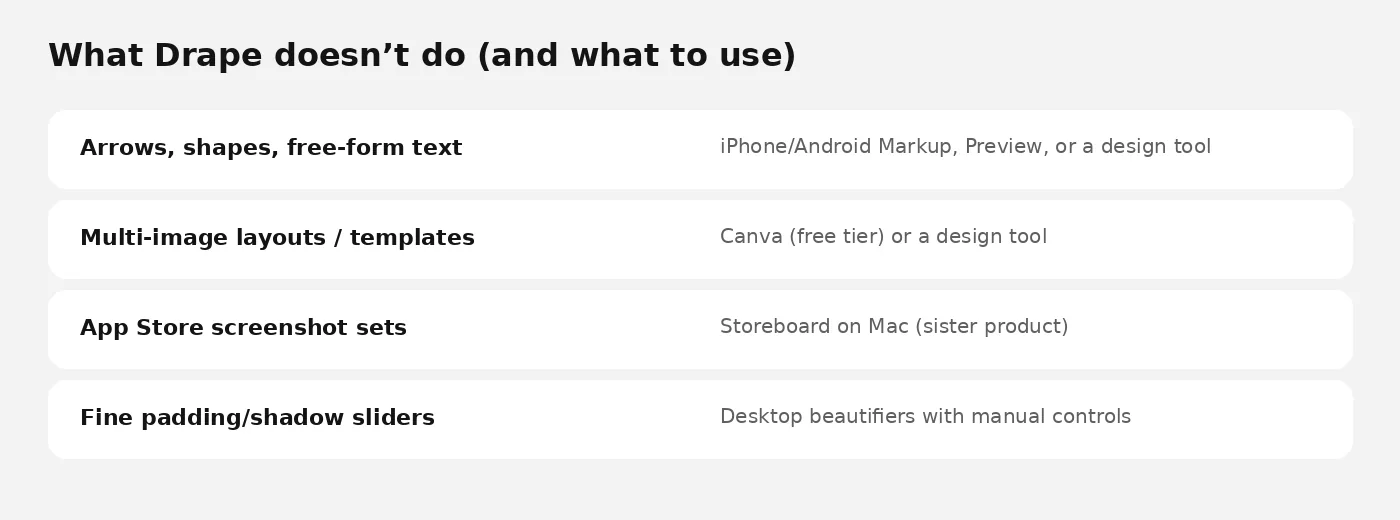
What doesn’t Drape do?
Be honest about fit. Drape is not an annotation suite, not a Canva replacement, and not an App Store screenshot factory.
- No arrows or free-form caption text — the pen covers private bits; it is not for drawing callouts. Use Markup or Preview.
- No multi-image layouts — one screenshot per export. Use Canva’s free tier for collages.
- No App Store screenshot sets — for that, use Storeboard on the Mac (same studio).
- Preset corners only — four sizes, not a padding slider.
FAQ
Is Drape a free screenshot editor?
Yes. Drape is free, with no account, no image limit and no paid tier. Each saved image carries a small “Made with Drape” mark in the bottom-right corner.
Does a free screenshot editor upload my screenshots?
Drape does not. Your screenshot is read, styled and saved by your browser on your device. The page’s content security policy blocks connections to other sites, and there are no analytics cookies. You can open the page, turn on airplane mode and keep editing.
Can I use a screenshot editor on my phone without installing anything?
Yes. Open drape.digitalsauce.io in Safari on iPhone or Chrome on Android. Choose or Paste a screenshot, swipe a style, then Copy image or Share. On Android, add Drape to your home screen to get it in the share sheet.
What’s the difference between a screenshot editor and a screenshot beautifier?
People search both. In practice they mean the same job: crop or frame a screenshot, add a background, hide private bits and export a size that fits the post. Drape’s homepage says “beautifier”; this guide uses “screenshot editor” because that is the higher-volume phrase.
When should I not use Drape?
Skip Drape if you need arrows, callouts or free-form text, multi-image layouts, App Store screenshot sets, or fine sliders for padding and shadow. Use iPhone Markup or Preview for arrows, Canva’s free tier for layouts, and Storeboard on Mac for App Store sets.
- Sources checked 5 Nov 2026 (Australia/Melbourne): Drape, Drape llms.txt, Apple iPhone Markup guide, pika.style, Canva screenshot editor, CleanShot X, Shots.so.
- Related: How to make screenshots look good for X and LinkedIn · How to blur private info in a screenshot · Weft free screen recorder · Drape blog.
Ask AI about this guide
Opens your assistant with a question about this page, answered from it.
More guides
 How-to · 8 min read
YouTube thumbnail size in 2026: dimensions, limits and safe zones
YouTube thumbnail size for 2026: the recommended pixels, 16:9 ratio, file size and format limits, safe zones for text, and how to make screenshots fit.
 How-to · 5 min read
How do you make a clean tweet screenshot for posts and slides?
Free tweet screenshot generator: capture a post, blur names in Drape, add a clean background and export sizes for LinkedIn, Instagram and slides.
 Privacy · 5 min read
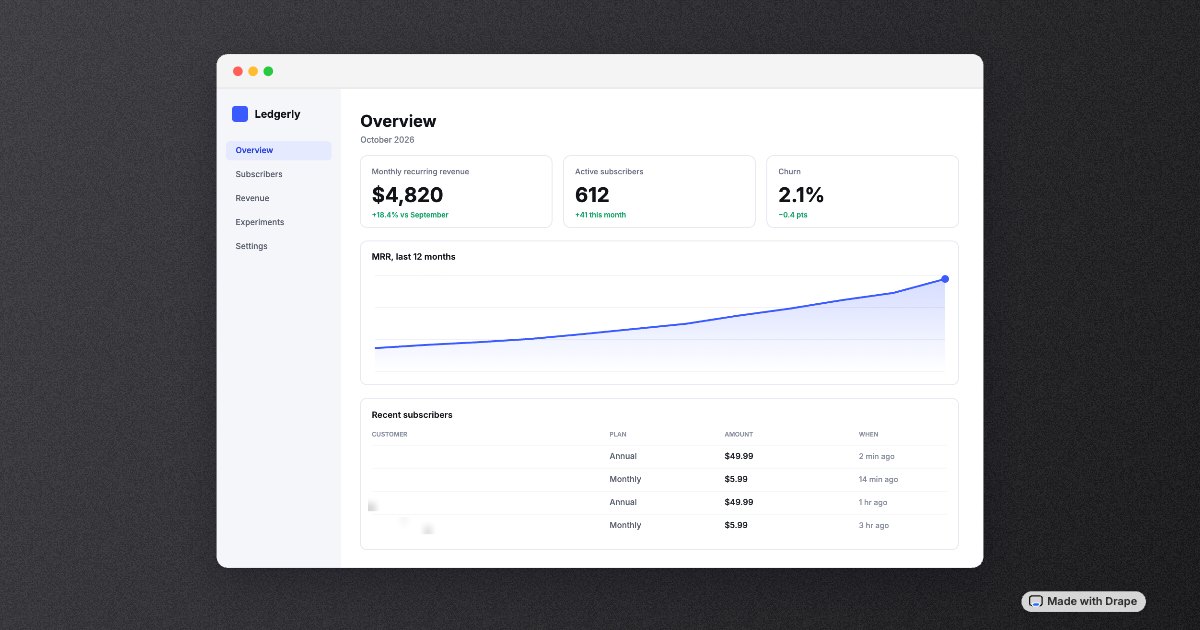
How do you share a mockup screenshot of revenue without leaking customer data?
Mockup screenshot workflow for building in public: blur emails and Stripe IDs in Drape, frame the shot, then post from your phone. Free, no upload.
 Privacy · 6 min read
How to blur private information in a screenshot before you post it
How to blur private info in a screenshot safely: which methods can be reversed, why pixelation and cropping have leaked, and a checklist before you post.
 How to · 6 min read
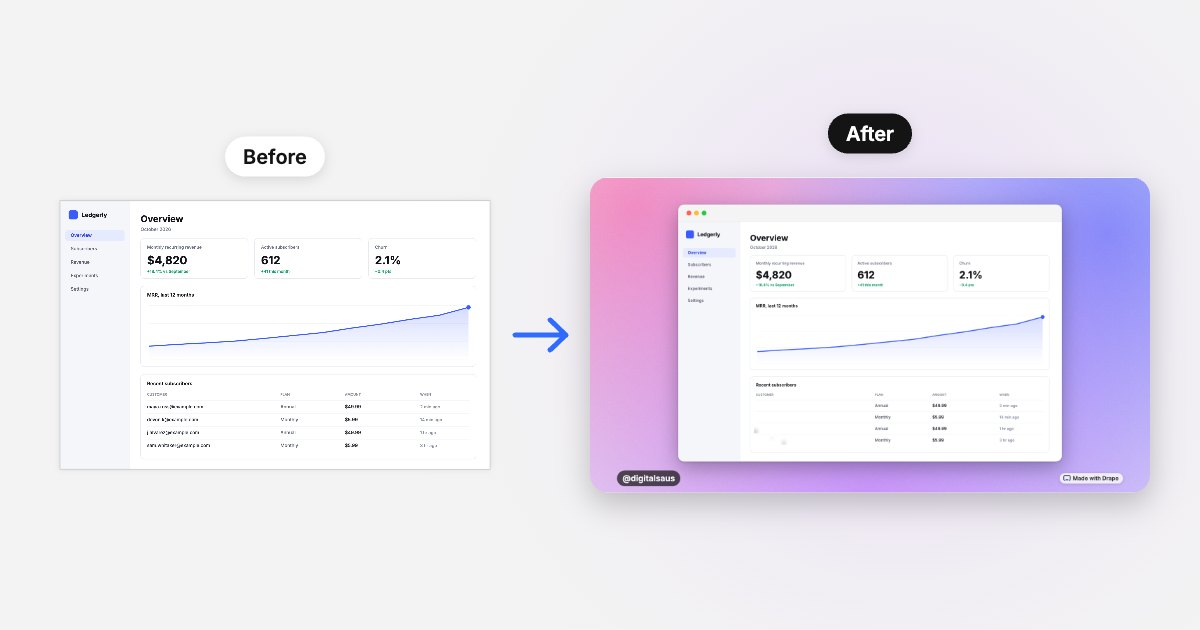
How to make screenshots look good for X and LinkedIn
How to make screenshots look good on X and LinkedIn: crop, padding, a matching background, rounded corners, a soft shadow and the right shape per post.
Make your next screenshot post-ready.
Drape is free and runs in your phone’s browser: a matching background, a frame, blur for the private bits and your handle, then Copy image. No account, and nothing is uploaded.
Open Drape