How-to · 5 min read
How do you make a clean tweet screenshot for posts and slides?
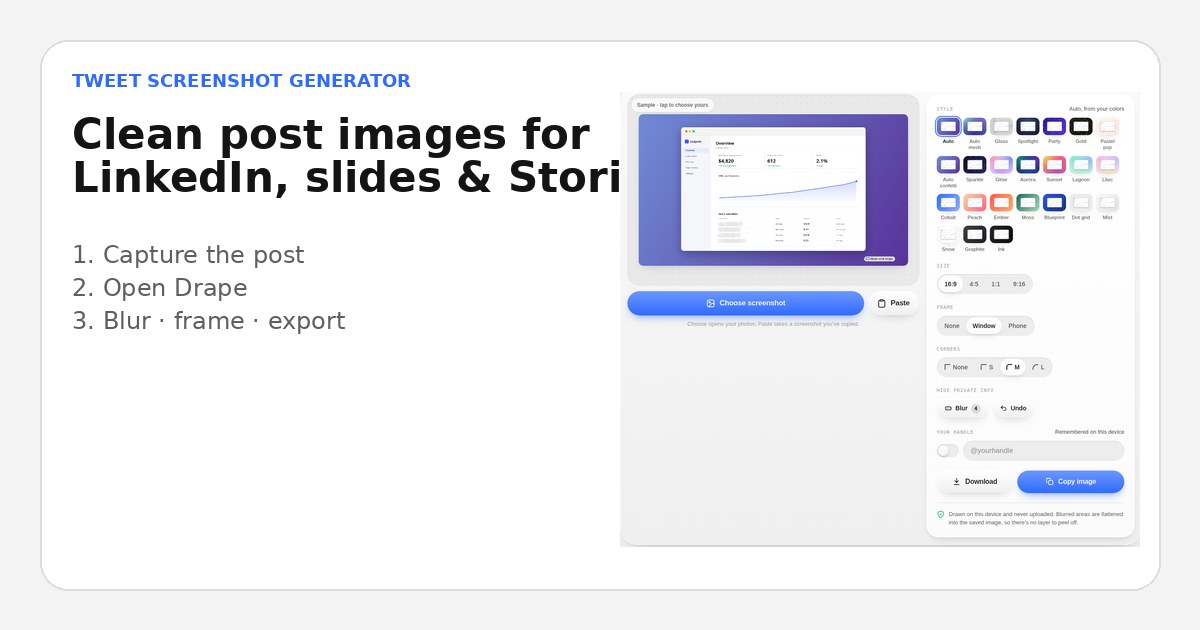
The short answer: capture the real post on X, open Drape in your phone browser, blur names and handles you should not amplify, add a clean background and frame, then export 16:9, 4:5, 1:1 or 9:16. That is a free tweet screenshot generator workflow — no fake tweet composer, no upload, no install.
Tweets belong to their authors. Drape is not affiliated with X — this workflow styles a real screenshot you already took.
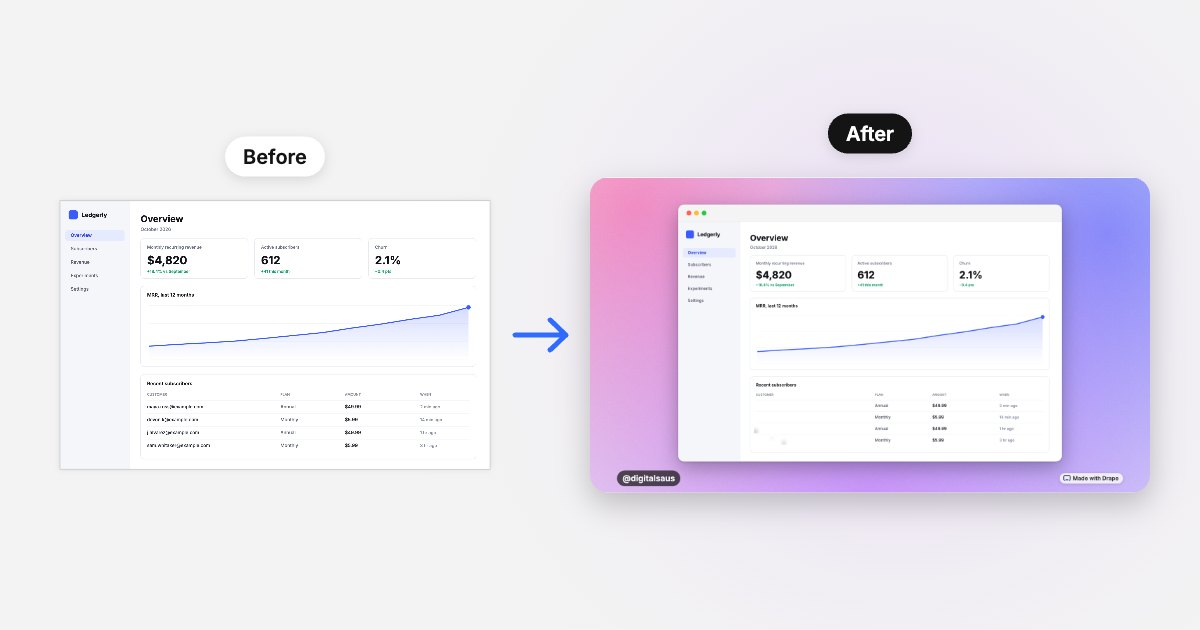
I built Drape at Digital Sauce for builders who post screenshots of charts, reviews and (yes) tweets. Most “tweet to image” tools invent a post. This guide uses a real capture, then makes it look post-ready.
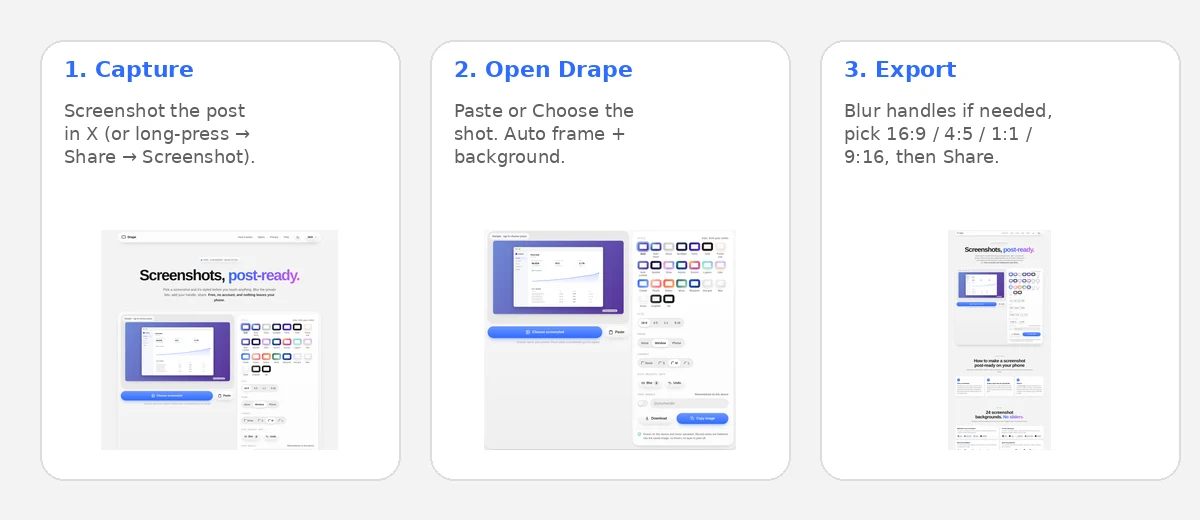
- Screenshot the post in X (or long-press → Share → Screenshot where available).
- Open drape.digitalsauce.io — Paste or Choose the shot.
- Blur names/@handles, pick a size, Copy image or Share.
- Not a fake-tweet maker. Not for thread collages or arrows.
Make your tweet image free in Drape
How do you make a clean tweet screenshot?
Start with the live post, not a typed-in quote. Open the tweet on X, take a screenshot (or use X’s share sheet screenshot option where your client offers it), then style that file. A clean result usually needs four things: a tight crop, private bits blurred, a quiet background, and a size that matches LinkedIn, Instagram or your slides.
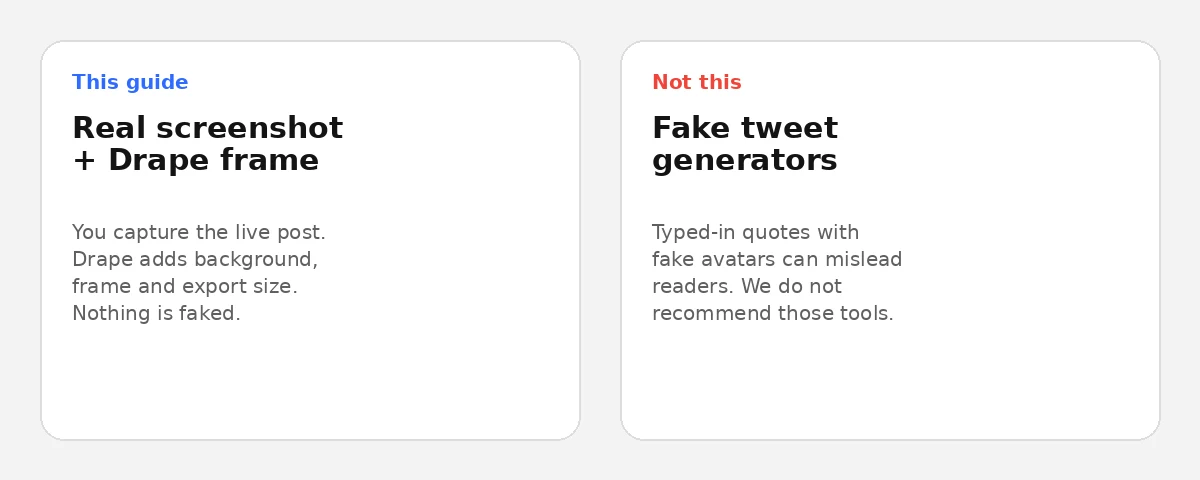
Drape covers the last three on a phone browser. Markup on iPhone or Android can crop and scribble if you only need a quick redaction. Fake “tweet generators” that let you type any handle are a different category — they can mislead readers, and this page does not recommend them.
How do you do it step by step with Drape?
- Capture the post. On iPhone or Android, screenshot the tweet (volume up + side button, or your phone’s usual chord). Crop out your status bar if it shows notifications.
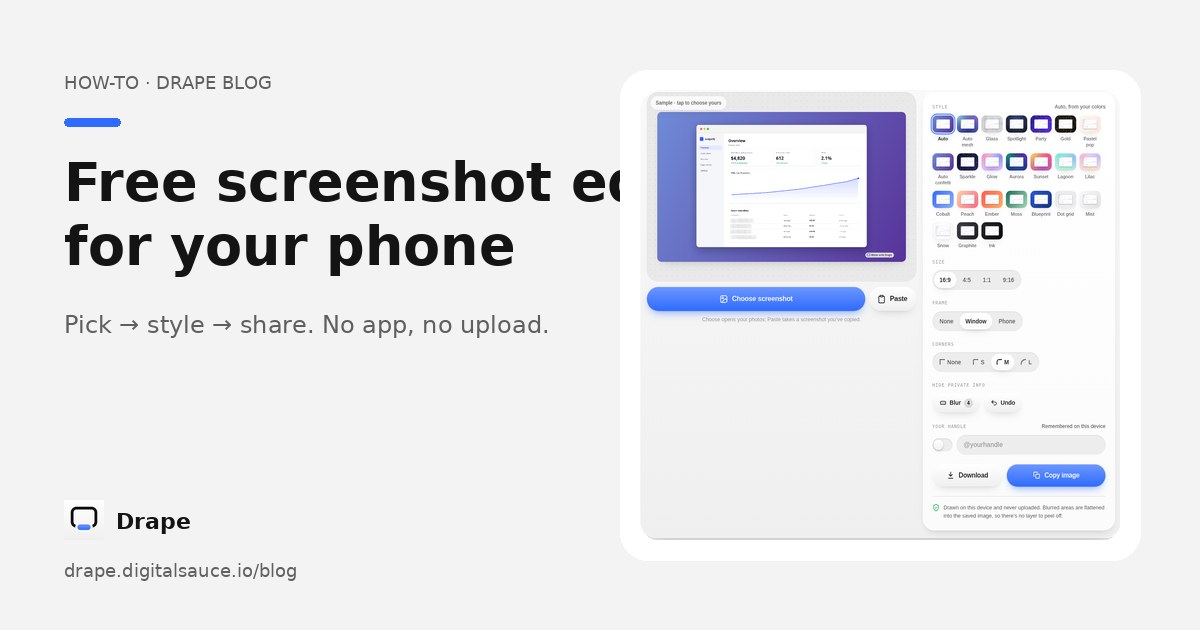
- Open Drape. Go to drape.digitalsauce.io in Safari or Chrome. Tap Paste if you copied the image, or Choose to pick it from Photos. Wide shots get 16:9 and a window frame; tall ones get 4:5 and a phone frame.
- Swipe a style. There are 29 backgrounds (auto colours from the shot, solids, soft gradients). Add your @handle in the corner if you want credit on the image itself.
- Blur, then export. Drag blur boxes over names or handles you should not amplify. Pick 16:9, 4:5, 1:1 or 9:16. Tap Copy image or Share.
How do you blur names and handles before sharing?
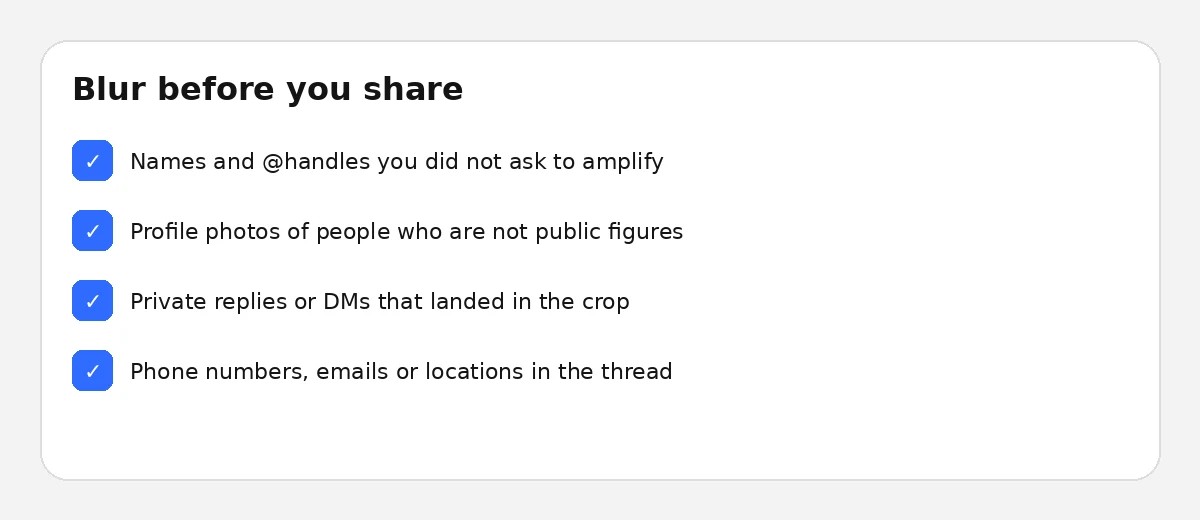
A screenshot can turn a quiet reply into a broadcast. Before you post the image to LinkedIn or a slide deck, hide anything that identifies someone who did not ask to be quoted: @handles, display names, profile photos of private people, and any private reply that snuck into the crop.
In Drape, drag blur boxes over those spots or use the opaque pen. Blurred regions are shrunk to a few pixels and scaled back up, then flattened into the PNG — so the original text is not sitting under a removable layer. For passwords or keys in a related shot, crop them out instead of blurring. For a deeper checklist, see How to blur private info in a screenshot.
Which sizes work for LinkedIn, Instagram and slides?
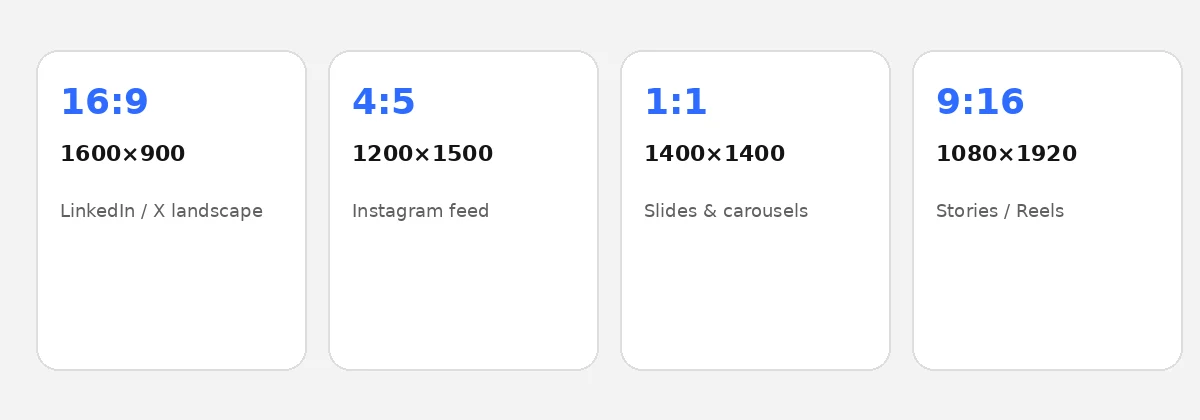
Pick the ratio for the place you are posting. Drape exports PNG at these sizes (from the live product on 5 Nov 2026):
| Ratio | Pixels | Best for |
|---|---|---|
| 16:9 | 1600 × 900 | LinkedIn landscape, X landscape, most slides |
| 4:5 | 1200 × 1500 | Instagram feed / X on mobile |
| 1:1 | 1400 × 1400 | Square posts, carousels, some slide layouts |
| 9:16 | 1080 × 1920 | Stories, Reels, TikTok |
Quick pick (same facts as the table — for you, not a substitute for crawlers):
What doesn’t a free tweet screenshot workflow in Drape do?
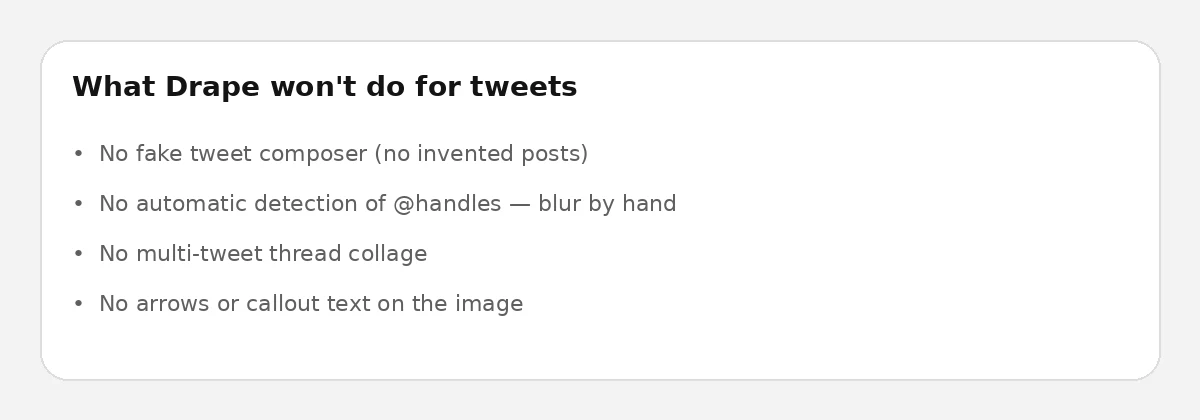
Drape is intentionally small. For tweet images it will not:
- Invent a tweet, avatar or engagement counts (no fake generator)
- Auto-detect @handles — you place blur boxes yourself
- Stitch a multi-tweet thread into one collage
- Add arrows, callouts or free-form text (use iPhone Markup / Preview)
For polish tips that apply beyond tweets, see How to make screenshots look good for X and LinkedIn. For a broader free editor walkthrough, see Free screenshot editor for iPhone and Android.
FAQ
Is it OK to share screenshots of other people's tweets?
Usually for commentary, reporting or fair quotation — but ask before amplifying a private person's post, blur names and handles when they did not consent, and do not fabricate a tweet. Tweets belong to their authors; Drape is not affiliated with X. X's own rules change; check help.x.com before you publish, and when in doubt crop or skip.
What size is best for LinkedIn?
Use Drape's 16:9 export (1600 × 900) for LinkedIn landscape posts and most slide decks. Use 1:1 (1400 × 1400) for square carousels, 4:5 for Instagram feed, and 9:16 for Stories or Reels.
Does Drape upload my image?
No. Drape reads, styles and saves the screenshot in your browser on your device. There is no account, no backend upload and no analytics cookies. You can open the page, turn on airplane mode and keep editing.
Is Drape a fake tweet generator?
No. Drape does not invent posts or avatars. You capture a real screenshot from X (or Twitter), then Drape adds a background, frame and export size. We do not recommend tools that type fake tweets.
Can I use a tweet screenshot generator on my phone for free?
Yes. Capture the post on your phone, open drape.digitalsauce.io in Safari or Chrome, Paste or Choose the shot, blur anything private, pick a size and Share. No install and no paid tier.
- Sources checked 5 Nov 2026 (Australia/Melbourne): Drape, Drape llms.txt, Apple iPhone Markup guide. Tweets belong to their authors; Drape is not affiliated with X.
- Related: Make screenshots look good for X and LinkedIn · Blur private info in a screenshot · Free screenshot editor · Drape blog.
Ask AI about this guide
Opens your assistant with a question about this page, answered from it.